
Solvyren AI documentation
From your first conversation to reusable intelligent workflows, this guide covers the features available in the Solvyren workspace, how they behave, and the controls that keep you in charge.
Quick start
- Create and sign in to your accountRegistration opens a private workspace associated with your account.
- Select an intelligent serviceUse Solvyren AI or connect a compatible external provider from the model menu.
- Start a conversationWrite a message, attach a file, or enable a Skill or available tool.
- Organize and reuseMove work into projects and save presets, prompts, memory, or an Agent.
Chats & projects
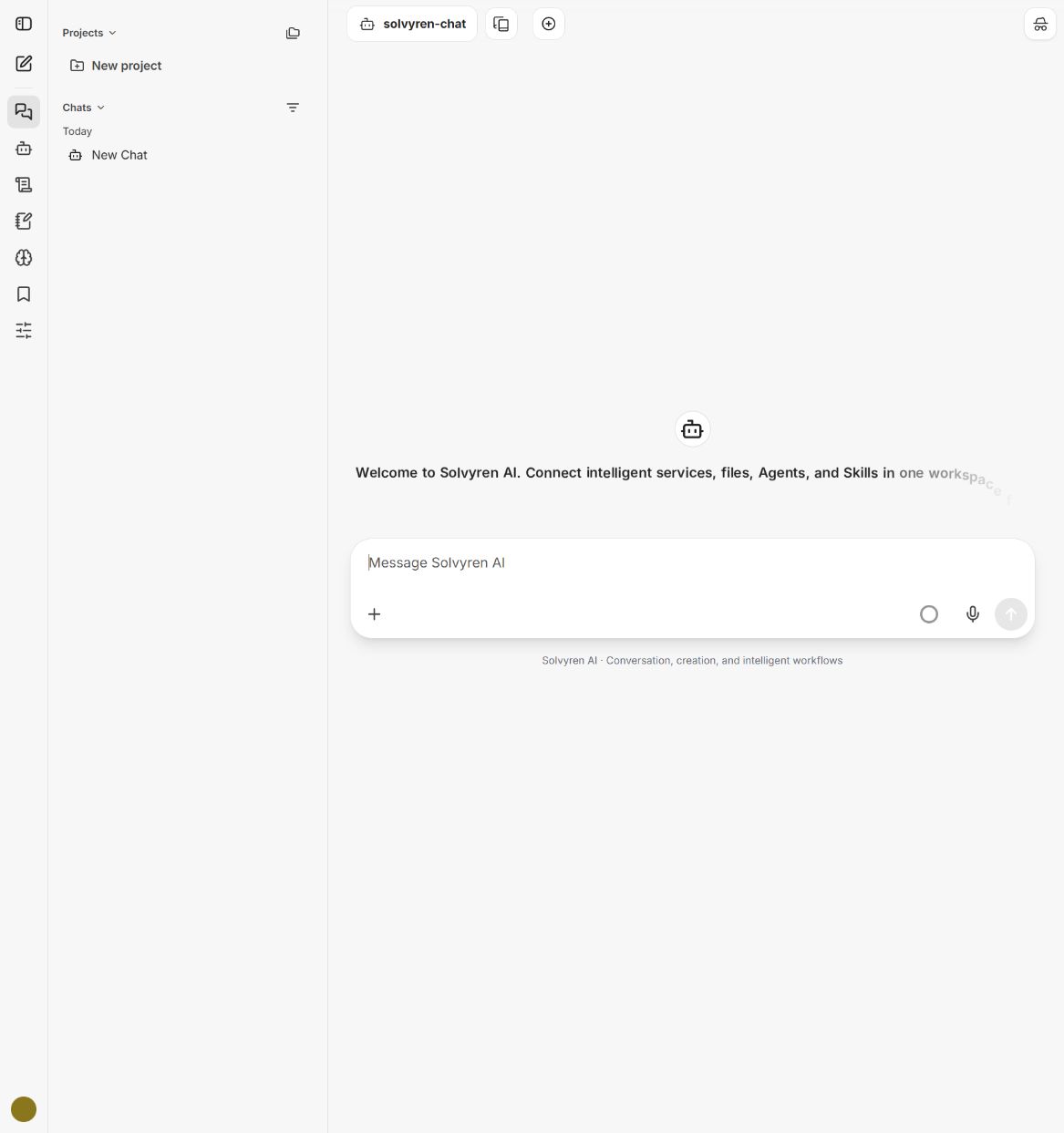
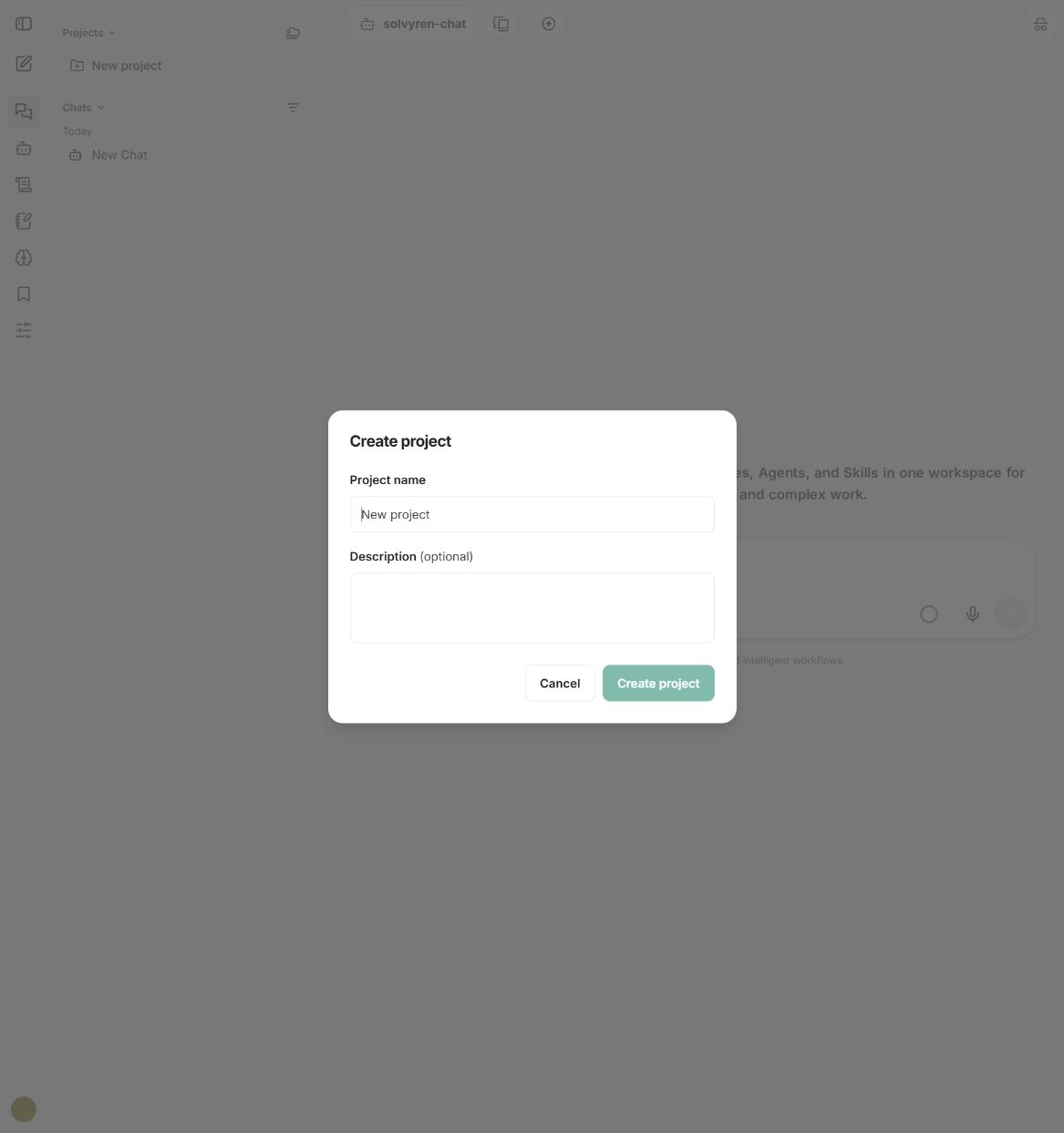
A new chat is the entry point for every task. Find and filter past conversations from the sidebar, group related work in projects, open multiple conversation paths, or use Temporary Chat when a task should stay outside normal history.
Models, external APIs & presets
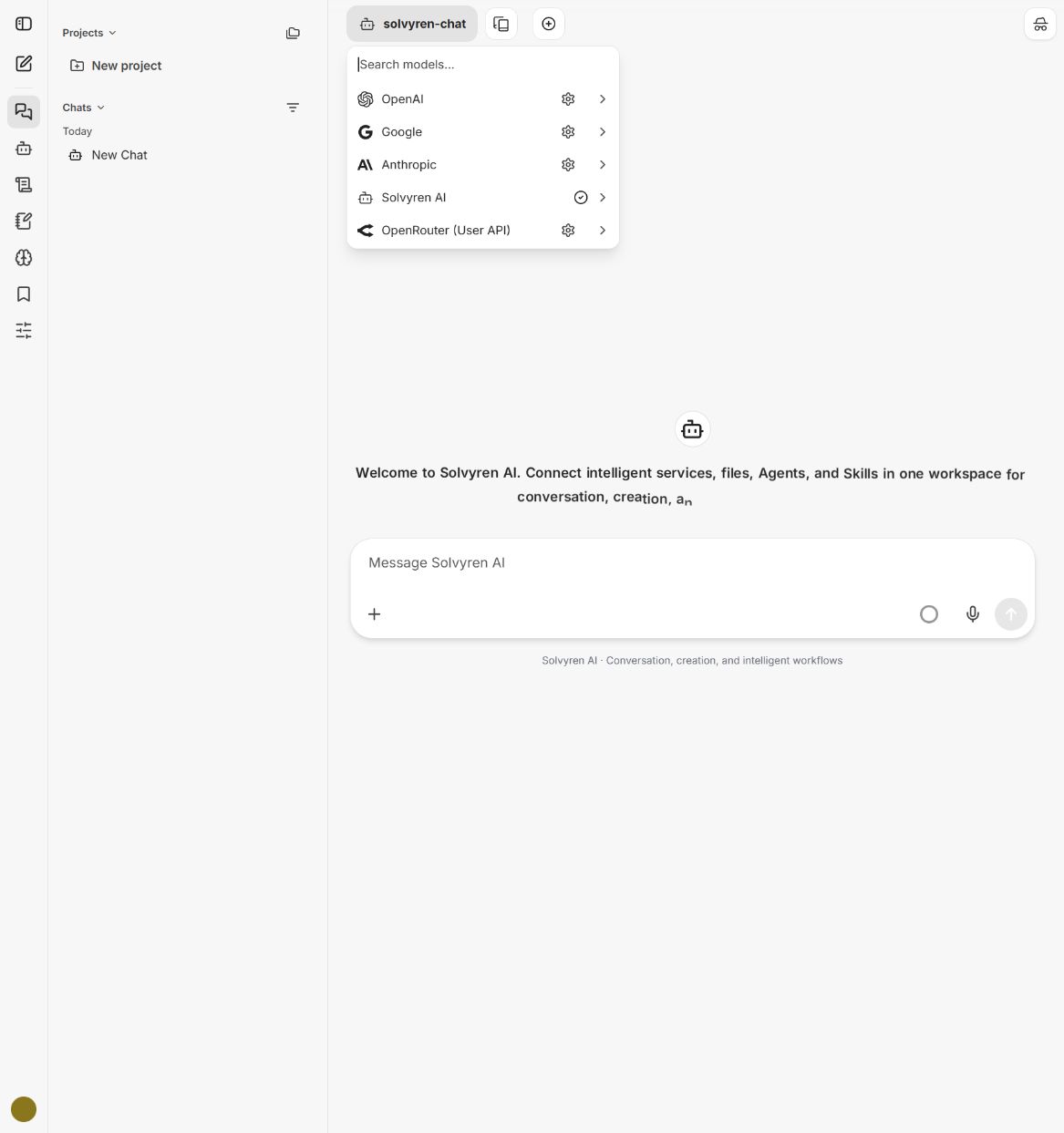
The model selector brings Solvyren AI and user-connected providers into one place. Add external credentials only through the provider key interface—never paste a key into a chat message. Presets save a model and parameter configuration for repeatable use.
Files, attachments & tools
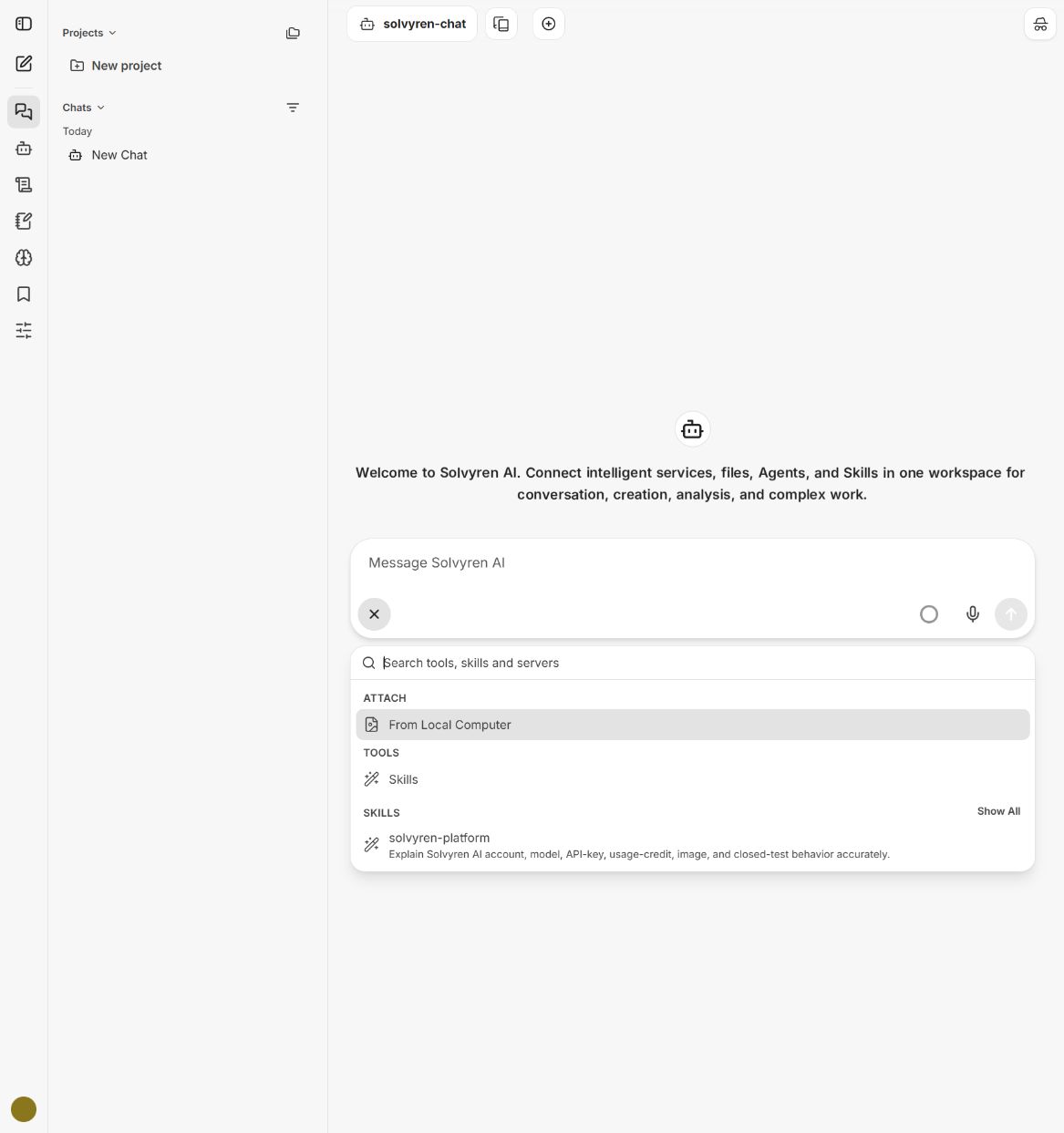
Upload a local file from the composer or enable an available tool or Skill for the current task. The client can resize oversized images before upload and turn very long pasted text into a file for more reliable processing.
Agents
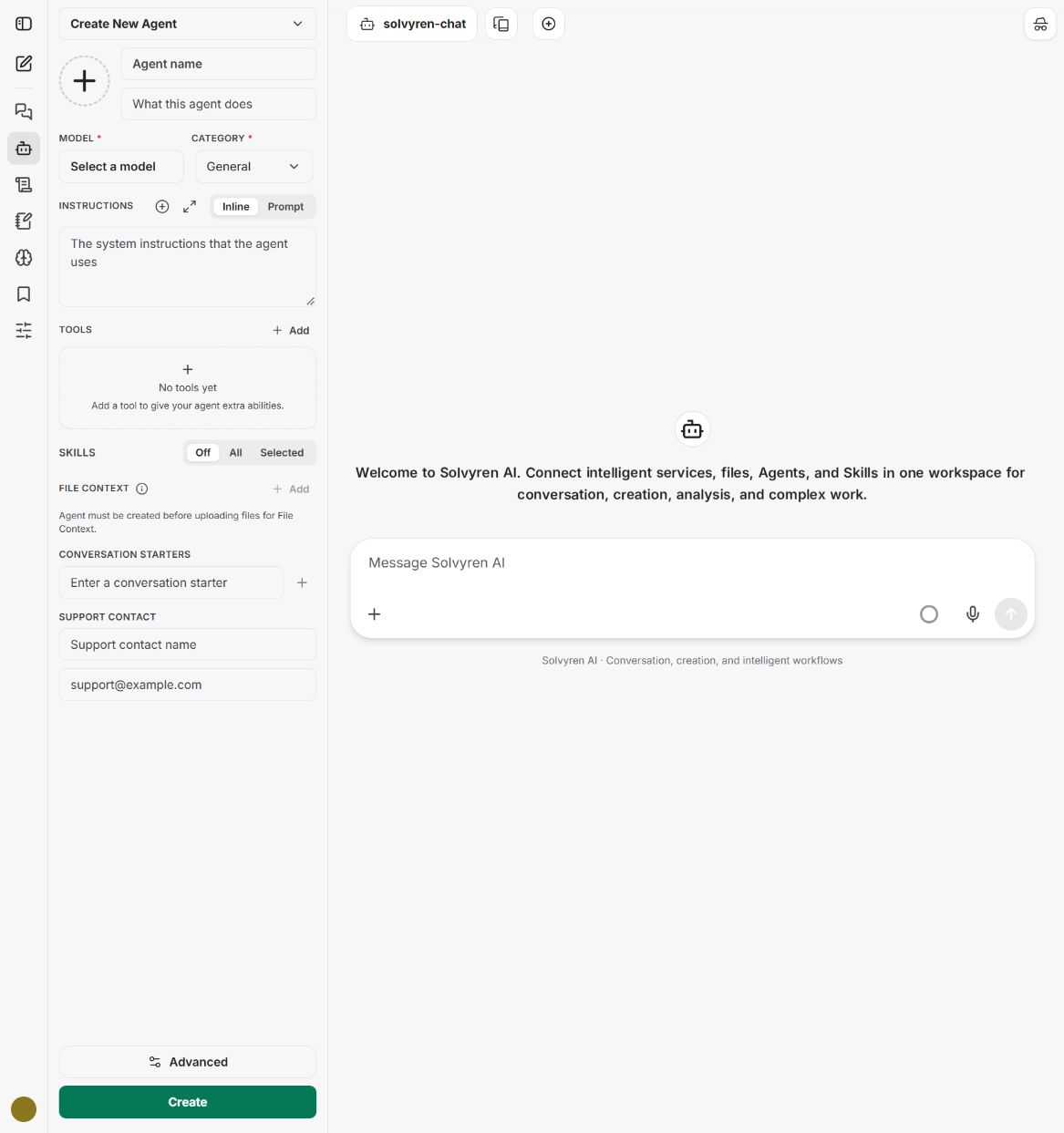
An Agent is a reusable assistant designed for a specific goal. The builder combines a name, description, model, category, instructions, tools, Skills, file context, conversation starters, and optional support details.
- Define the role, goal, inputs, and expected deliverable.
- Connect only the tools and files the task genuinely requires.
- Use conversation starters to make the Agent's scope clear.
- Validate with small tasks before expanding automation.
Skills & prompts
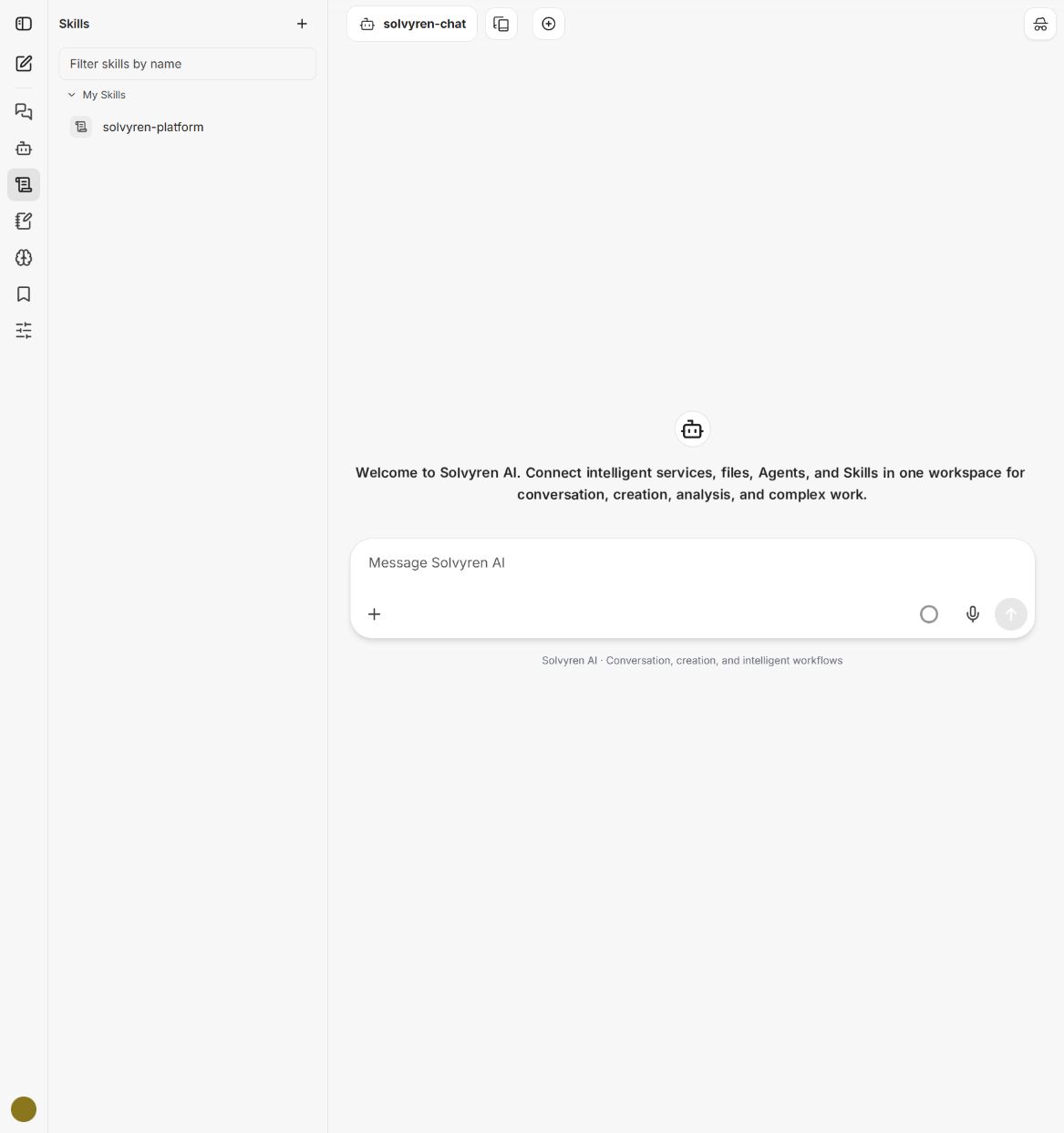
A Skill packages a repeatable method with instructions, references, and tool constraints. A prompt stores a reusable task instruction or output format. Both can be created, searched, managed, and called from a conversation.
Memory & bookmarks
Memory stores preferences or background that should be available across conversations. You can create, filter, edit, disable, or delete saved memories. Bookmarks keep important content easy to revisit. Never store passwords, private keys, recovery phrases, or access tokens in memory.
Model parameters & context
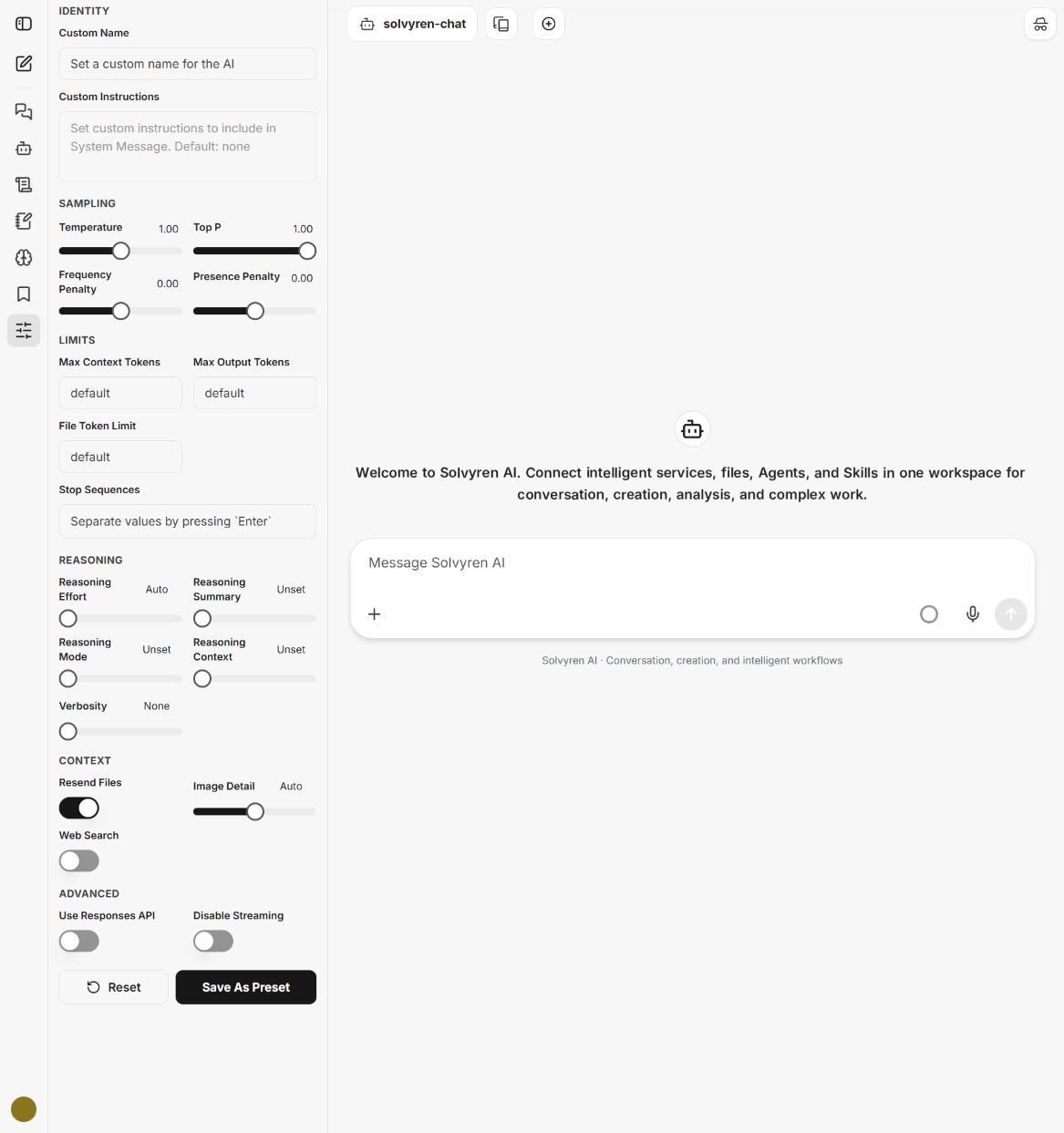
The parameters panel supports custom identity and instructions, sampling controls such as temperature and Top P, penalties, context and output limits, stop sequences, reasoning controls, verbosity, file resend behavior, image detail, web-search capability, and advanced streaming options. Availability varies by provider and model.
Speech
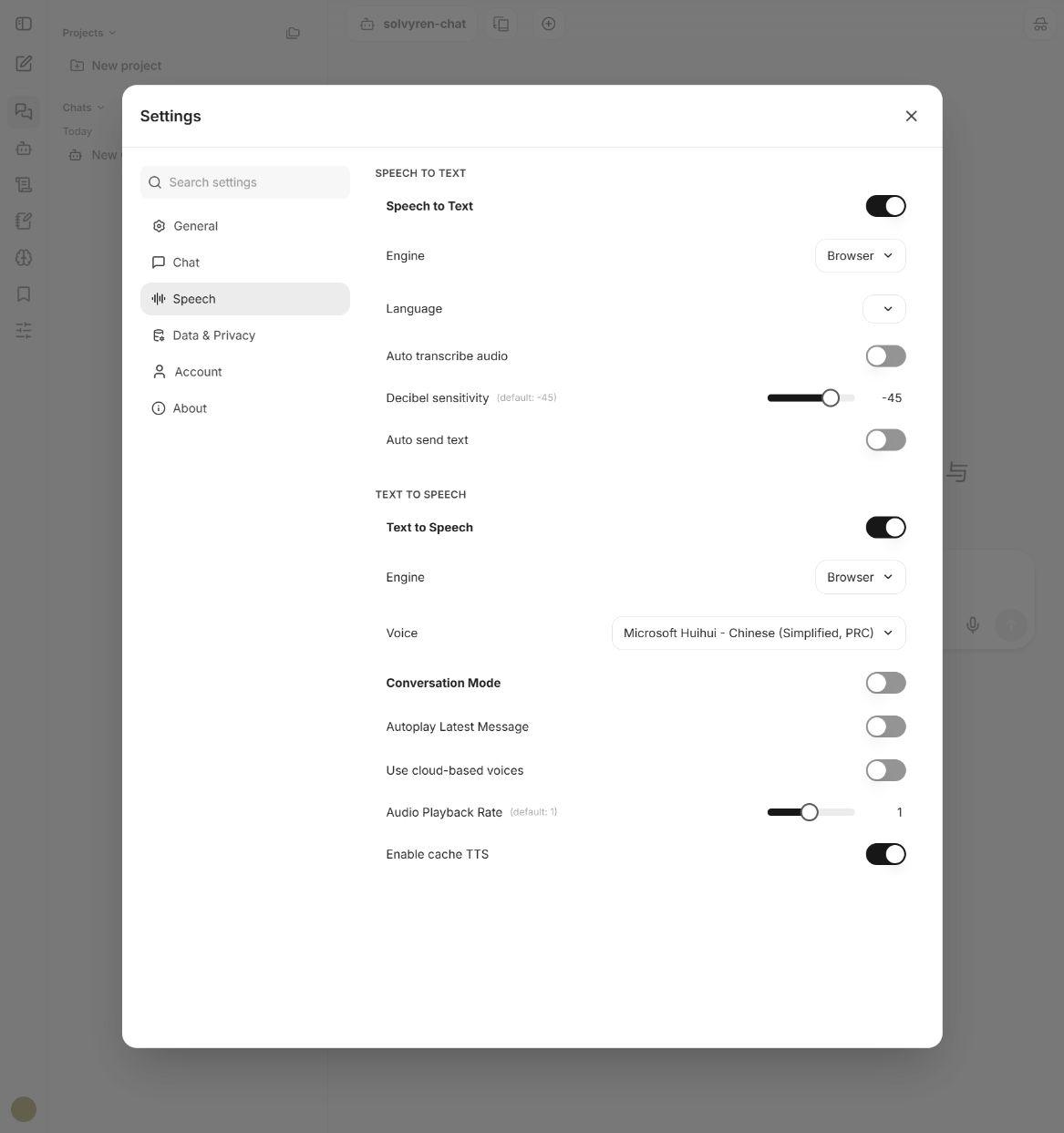
Speech settings cover speech-to-text and text-to-speech. Choose an engine, language, and voice; adjust recording sensitivity and playback rate; and configure automatic transcription, sending, or playback. Your browser may ask for microphone permission when voice input is used.
Personal settings
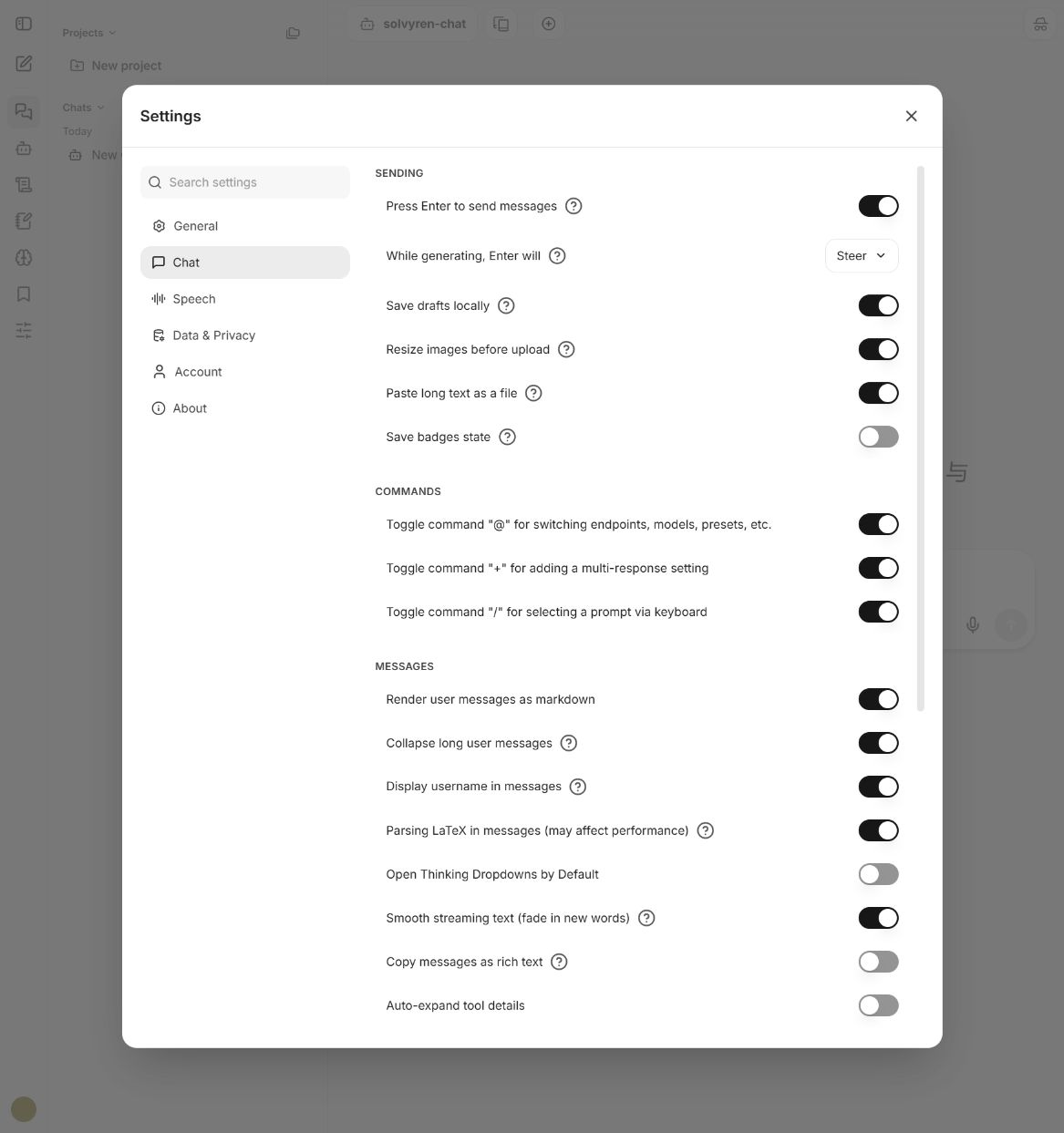
Each account can independently control theme, language, type size, UI scale, message sending, keyboard commands, Markdown and LaTeX behavior, notifications, layout, and accessibility.
| Area | Available controls |
|---|---|
| Appearance & layout | Theme, language, font size, UI scale, chat direction, and mobile layout |
| Sending & editing | Enter-to-send, in-progress follow-ups, local drafts, image resize, and long text |
| Message display | Markdown, LaTeX, reasoning details, tool details, and rich-text copy |
| Notifications & access | Unread count, reply notifications, sounds, and keep-screen-awake |
Data & privacy
The Data & Privacy panel controls whether saved memory participates in responses. It also provides conversation import, file and shared-link management, archived chats, provider API keys, credential revocation, local speech-cache cleanup, and conversation clearing.
- HTTPS protects data in transit.
- Never place passwords, private keys, recovery phrases, or API tokens in messages, memories, project descriptions, or prompts.
- External providers apply their own billing, retention, and data-processing policies.
- Sign out after using a shared device.